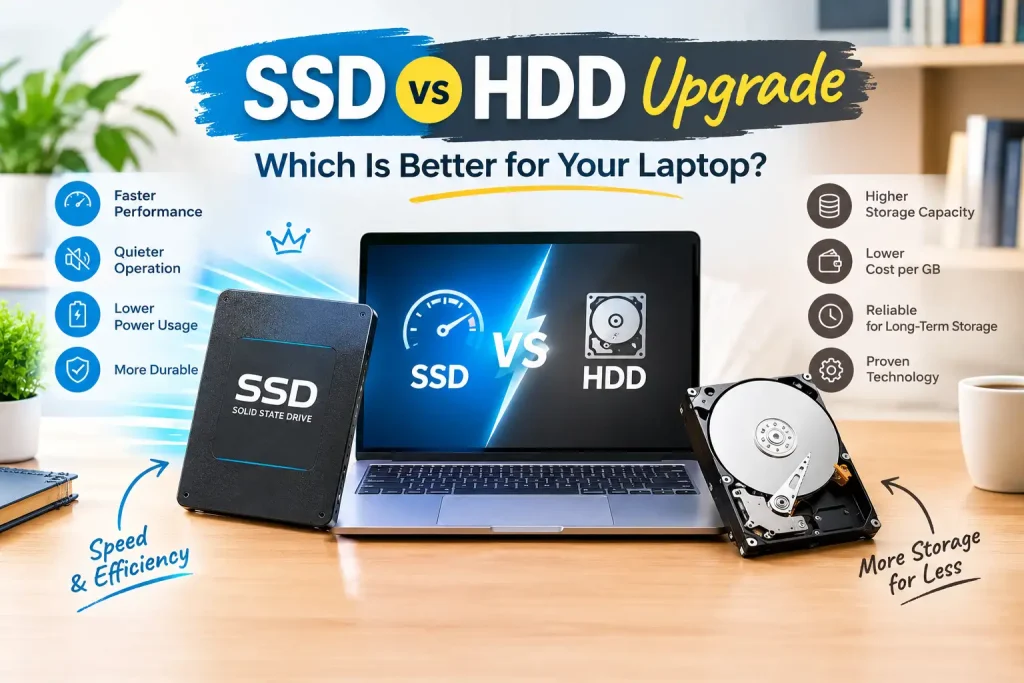
If your laptop takes too long to start, struggles to open applications, or freezes while performing everyday tasks, upgrading its storage could make a noticeable difference. Choosing between a Solid State Drive (SSD) and a Hard Disk Drive (HDD) depends on your performance needs, budget, and laptop compatibility. A Laptop Repair Shop in Sonarpur can help you determine which storage option suits your device and whether an upgrade will solve your current performance issues.
Both SSDs and HDDs store your operating system, software, documents, photos, and other files. However, they use different technologies, which directly affects their speed, durability, power consumption, and overall user experience. Understanding these differences will help you make a practical decision without spending money on an upgrade that does not meet your expectations.
Table of Contents
ToggleWhat Is the Difference Between an SSD and an HDD?
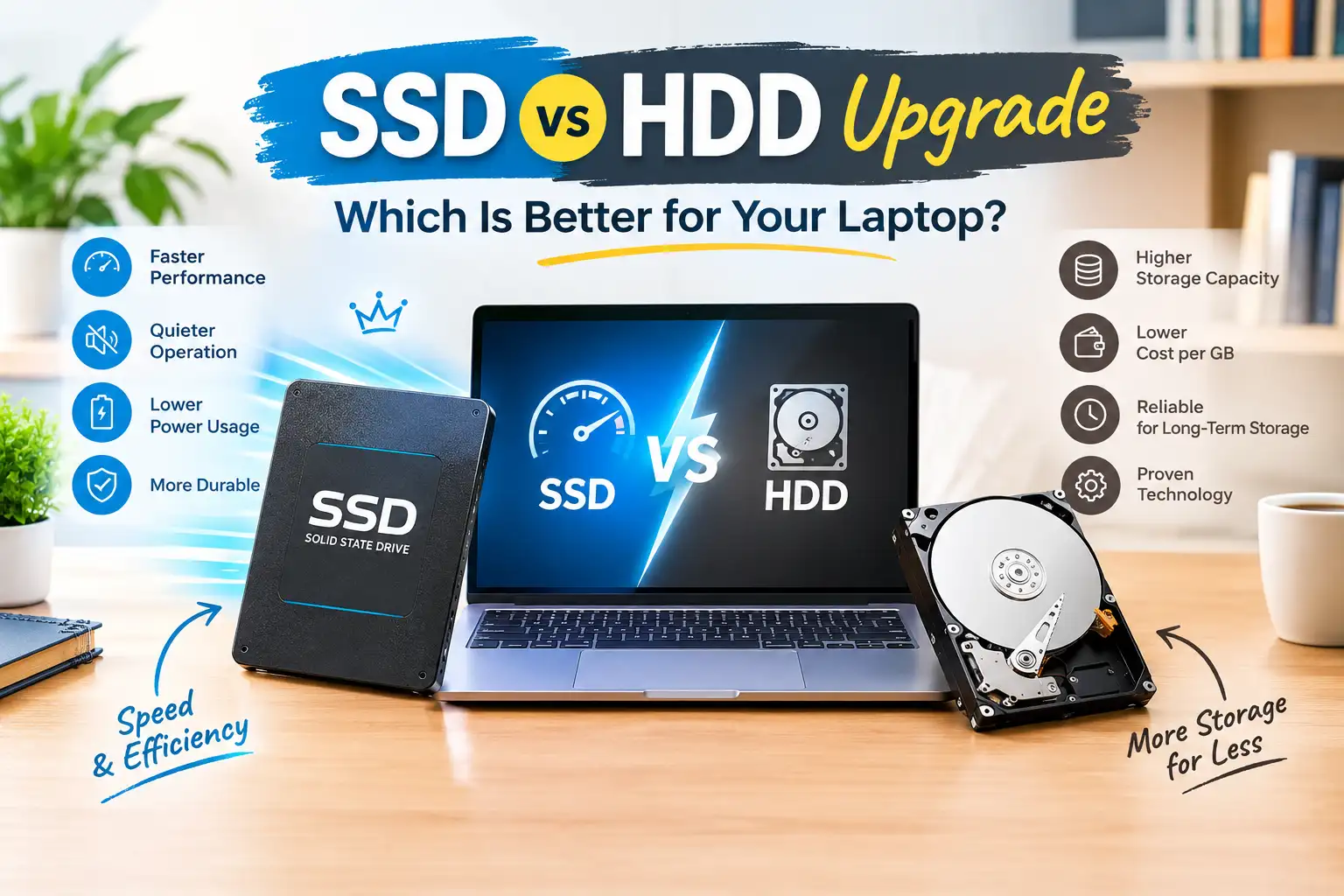
An SSD uses flash memory to store data electronically, whereas an HDD relies on spinning magnetic disks and a mechanical read/write head. Although both serve the same basic purpose, their internal designs create significant differences in everyday performance.
Traditional hard drives have been widely used in laptops because they offer relatively affordable storage capacities. SSDs have become increasingly popular because they provide faster data access, quieter operation, and improved resistance to physical movement.
For example, a laptop with an HDD may take considerable time to boot Windows or load a large application. Replacing that drive with an SSD can make startup and software loading much faster, provided the laptop’s processor, memory, and operating system are functioning properly.
An SSD is generally the preferred choice for users who want a responsive laptop. However, an HDD can still be useful when large storage capacity is more important than speed, especially for backups and storing extensive media collections.
How Does an SSD Upgrade Improve Laptop Performance?
An SSD upgrade can transform the way an older laptop feels during everyday use. Since SSDs have no moving mechanical components, they can access stored data much faster than conventional hard drives.
Faster Startup and Shutdown
One of the most noticeable improvements is reduced boot time. A laptop running Windows from an SSD can usually start faster than an otherwise comparable system using an HDD. Shutdowns and restarts may also take less time.
This benefit is particularly useful for students, office employees, freelancers, and professionals who frequently turn their laptops on and off throughout the day.
Quicker Application Loading
Programs such as web browsers, office applications, photo editors, and development tools often load faster when installed on an SSD. The operating system can retrieve files more efficiently, reducing waiting time when launching applications or switching between tasks.
An SSD can also improve responsiveness when the system uses virtual memory because physical RAM is insufficient. However, adding more RAM may be a better solution if memory limitations are the main cause of slow performance.
Better Everyday Responsiveness
Opening folders, searching files, installing updates, and transferring small files can feel smoother with an SSD. The improvement is especially noticeable when replacing an ageing or slow hard drive.
If you are unsure whether storage is responsible for your laptop’s sluggish performance, a technician can check drive health, memory usage, startup programs, and operating system errors before recommending an upgrade.
When Is an HDD Still a Good Choice?
Although SSDs offer superior speed, HDDs have advantages that make them useful in specific situations. Their main strength is providing substantial storage capacity at a comparatively low cost.
An HDD may be suitable if you regularly store large video files, archived projects, photographs, music collections, or backup copies of important documents. Users who need several terabytes of storage without paying for an equivalent SSD capacity may find a traditional hard drive more economical.
However, mechanical drives are more vulnerable to damage from physical shocks while operating. They can also produce audible spinning or clicking sounds, although unusual clicking may indicate a failing drive rather than normal operation.
For laptops, an HDD is generally less attractive as the primary system drive because of its slower performance. If your laptop supports only a particular drive size or interface, compatibility must also be checked before purchasing replacement storage.
A practical alternative is to install a smaller SSD for Windows and frequently used applications while using a separate HDD or external drive for large files. This arrangement combines everyday speed with economical storage capacity.
SSD vs HDD: Which One Should You Choose?
The right choice depends on how you use your laptop, how much storage you require, and how much you want to spend.
| Feature | SSD | HDD |
| Speed | Faster data access and loading | Slower mechanical data access |
| Durability | Better resistance to physical movement | More sensitive to shocks while operating |
| Noise | Silent operation | May produce spinning noise |
| Power consumption | Generally lower | Generally higher |
| Storage cost | Higher cost per gigabyte in many cases | Usually lower cost per gigabyte |
| Best use | Operating system, applications, everyday computing | Large archives and budget storage |
| Performance impact | Can significantly improve responsiveness | Limited performance improvement over an existing HDD |
For most everyday laptop users, an SSD is the better upgrade. It is particularly worthwhile if your device already has a compatible HDD and feels slow during startup or application loading.
An HDD remains useful for bulk storage, but its lower purchase price should be weighed against the slower performance it provides. Before making a decision, consider whether your laptop needs additional capacity, improved responsiveness, or both.
How Can a Laptop Repair Shop in Sonarpur Help With an SSD or HDD Upgrade?
Choosing the correct drive involves more than comparing prices. Laptop models differ in their supported storage interfaces, physical dimensions, maximum capacity, and installation requirements. Professional assessment can help prevent compatibility problems and unnecessary expenses.
A Laptop Repair Shop in Sonarpur can inspect your existing storage device, identify the type of drive installed, and determine whether your laptop supports a SATA SSD, an M.2 SATA drive, or an NVMe SSD. These options are not interchangeable in every laptop, so checking the manufacturer’s specifications is essential.
A technician can also assess whether the current drive is failing. If your laptop has frequent freezes, boot errors, or disappearing files, the problem may involve storage health rather than simply an outdated drive.
Services to Consider Before Upgrading
- Storage compatibility check: Confirm the supported drive interface, physical size, and capacity.
- Data backup and migration: Protect personal files and transfer data to the new drive when possible.
- Operating system installation: Install or migrate Windows and check that the system boots correctly.
- Performance testing: Verify that the new drive is detected and functioning as expected.
If you are comparing repair providers, look for a service that explains the available options, provides a clear cost estimate, and discusses data protection before beginning the work.
The Best Laptop Repair Shop in Sonarpur for your needs should be able to explain whether an SSD upgrade is worthwhile for your particular laptop instead of automatically recommending the most expensive component.
How Much Does an SSD or HDD Upgrade Cost?
The total upgrade cost depends on the drive’s capacity, type, brand, and installation requirements. SSD prices vary according to whether you choose a SATA model, an NVMe drive, or a higher-capacity option. HDD prices depend largely on capacity and form factor.
An entry-level SSD may be sufficient for everyday browsing, office work, and online classes. Users who work with large files or demanding software may prefer a higher-capacity drive.
In addition to the storage device, consider labour charges, data migration, operating system installation, and any accessories required for the upgrade. If your laptop uses a proprietary storage arrangement or requires extensive disassembly, installation costs may be higher.
An Affordable Laptop Repair Shop in Sonarpur should explain the expected expenses before starting the repair. Request a breakdown of the drive price, service charges, and any additional work so you can compare options fairly.
Avoid choosing a storage device based only on its lowest price. Compatibility, reliability, warranty coverage, and the suitability of the drive for your workload are equally important.
What Should You Check Before Replacing Your Laptop Storage?
Before purchasing an SSD or HDD, check your laptop’s specifications and the condition of the existing hardware. Not every laptop supports every storage type, and some newer or compact models have storage that cannot be upgraded.
First, confirm whether the laptop has a 2.5-inch SATA bay, an M.2 slot, or another storage configuration. If it has an M.2 slot, verify whether it supports SATA, NVMe, or both. The physical appearance of a connector alone does not guarantee compatibility.
Next, back up important files to an external drive or trusted cloud storage. If the current drive is failing, avoid repeatedly restarting the laptop or running unnecessary tests that could worsen data loss. Professional data recovery may be required if important files are inaccessible.
You should also consider whether the laptop needs additional RAM, malware removal, software cleanup, or cooling-system maintenance. An SSD can improve storage performance, but it cannot repair a damaged motherboard, fix every operating system error, or compensate fully for an underpowered processor.
For users who need guidance, Pixel Computer can be considered when exploring laptop repair and storage upgrade options.
Conclusion
An SSD is generally the better choice for improving laptop speed, reducing startup time, and making everyday applications more responsive. An HDD remains useful when affordable, high-capacity storage is the main priority. For many users, combining an SSD for the operating system with separate storage for large files offers a practical balance.
Before upgrading, check your laptop’s compatibility, back up important data, and identify the actual cause of its slow performance. Consulting a Laptop Repair Shop in Sonarpur can help you select a suitable drive, understand installation costs, and avoid unnecessary replacements. The best upgrade is the one that matches your laptop’s specifications, your daily workload, and your budget.
Frequently Asked Questions
1. Is an SSD better than an HDD for an old laptop?
Yes. An SSD can make an older laptop feel significantly faster during startup, application loading, and everyday tasks, provided the hardware remains compatible and functional.
2. Can I replace my laptop’s HDD with an SSD?
Many laptops support this upgrade, but compatibility depends on the model, storage interface, and physical dimensions.
3. Will an SSD increase my laptop’s RAM?
No. An SSD improves storage performance but does not increase physical RAM. Adding compatible memory may be necessary if the laptop struggles with multitasking.
4. How much storage capacity should I choose?
A 256 GB or 512 GB SSD may suit everyday computing, while users with large applications, games, or media collections may need 1 TB or more.
5. Should I upgrade my HDD or buy a new laptop?
An SSD upgrade may be worthwhile if your laptop’s processor, RAM, battery, and other components remain adequate. Consider replacement if multiple major components are failing or your device no longer meets your needs.